Guide · AI storyboard planning
How to plan a storyboard with AI — without losing control of the story
AI image tools make it fast to visualise a video, but speed creates its own problem: shots that look good individually and do not tell the story together. A storyboard plan keeps every image tied to a scene with a purpose.
1. Lock the brief and script first
A storyboard visualises an approved script. Start from the audience, goal and beats — if those change, the boards should change too. (See the YouTube video planning guide for that stage.)
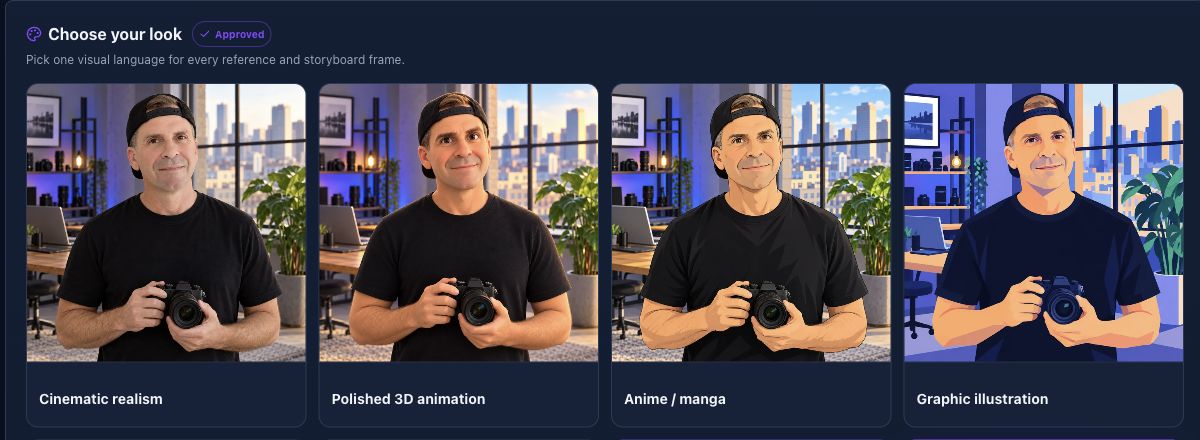
2. Choose a visual style and references
Pick one look for the whole piece — for example cinematic realism, polished 3D, stop-motion clay or paper-cut — and add references for recurring characters, locations or brand elements.
References should guide identity and style, not freeze every shot into the same composition. A character reference keeps the coach recognisable; it should not make every scene the same wide view of the gym.
3. Define every scene: action, camera, timing
Each scene needs enough direction that a different person (or tool) would produce the same shot:
- Action — what happens, who is in it
- Camera — framing and angle (close-up, medium, wide, detail insert, eye level)
- Timing — where it sits in the script and how long it lasts
- Notes — narration, on-screen text, sound
4. Concept board vs individual scenes
A concept board is one combined image showing the whole sequence at a glance — ideal for agreeing direction quickly. Individual scene images are separate, higher-detail frames, each generated from its own scene's action and framing. In ApexVeo these are kept separate: regenerating a scene never overwrites the concept board, and a combined storyboard is assembled only from the individual scenes you already have.
5. Review continuity
Read the boards in order. Check that characters, clothing, location and lighting stay consistent, that framing varies with intent, and that each frame still matches its script beat. AI images can drift; review is a human step.
6. Hand off to your chosen production tool
Export the concept board, individual scene images or the combined storyboard (with annotations when needed) and take them to production — filming yourself, an editor, or an external AI video tool such as Higgsfield using your own account. What you can export depends on the scene assets you have actually saved; a combined storyboard is assembled only from the individual scene images that exist. ApexVeo does not render the final video or post it for you.
Frequently asked questions
Will every AI-generated scene be perfectly consistent?
No tool can guarantee that. References improve consistency, and continuity review catches drift before production.
Do I have to use a specific video tool?
No. The storyboard exports work with filming, editing or whichever AI video tool you choose. Any external tool uses your own account.
What is the difference between a concept board and scene images?
A concept board is one image of the whole sequence; scene images are separate frames per scene, generated individually.
Plan your next video with ARIA
Research, plan and storyboard — then produce and publish with the tools you choose.
Start your own project